Building for IOS
Introduction
The documentation on the official channels is technically correct and it assumes that you have done some Xcode development before ...
A summary of those steps
- Get a Mac Book / Mac Mini which has more than 256GB disk space and more than 8GB RAM, you will struggle otherwise.
- Get an apple developer account ( Expect to pay $99 per year)
- Download XCode on the MacBook and Install the command line tools, you may also want to download simulators for IPad and IWatch. All this takes up space on your Mac and that's why you need the disk space.
- Install the PAServer.pkg on your Mac. This is used to fetch the files you need for remote building.
- Open XCode and add your Apple Developer account under Settings.
- We recommend creating a little Test application in XCode to help with the provisioning before you even worry about RAD Studio. Doing this allows for certificates to be requested from the Apple Development website.
- Additional steps include enabling your devices for development if you want to deploy to a physical device, unlike Android IOS simulator is sufficient for an efficient development life cycle and is the only way you can debug on IOS.
Updating the SDK
First run the PAServer you have installed on your Mac then create a connection profile once it is running. Important things to note are the IP Address of your Mac, leaving the password empty should be safe for local development within your work or private network.
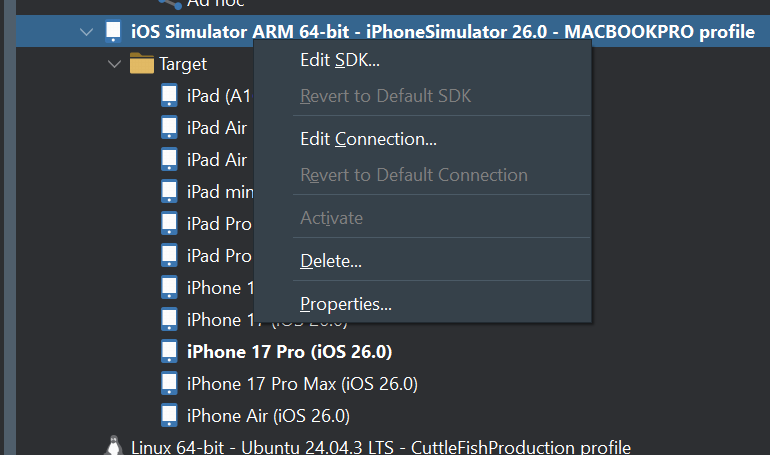
Start by right clicking IOS Simulator and clicking on Add/Edit Connection.
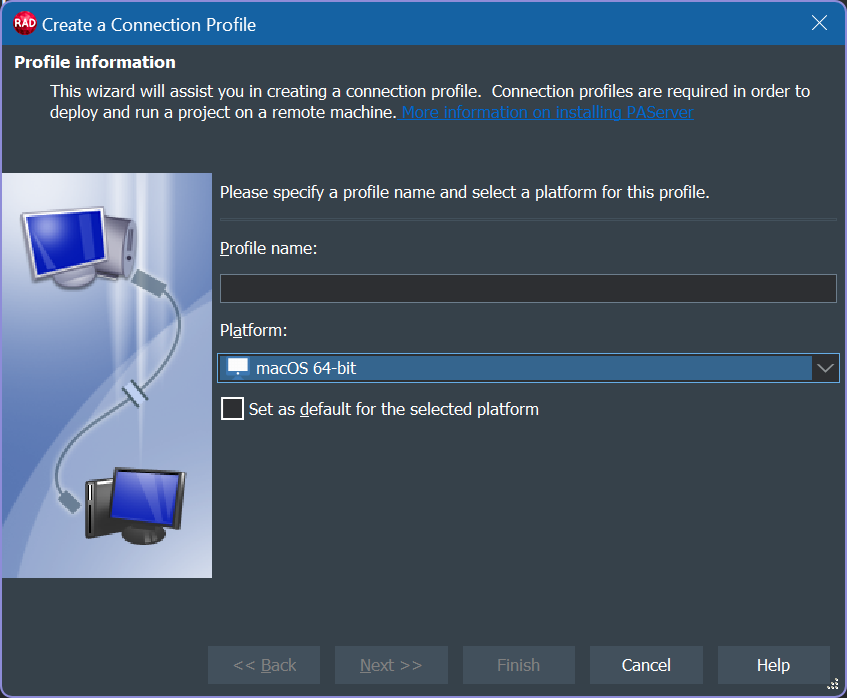
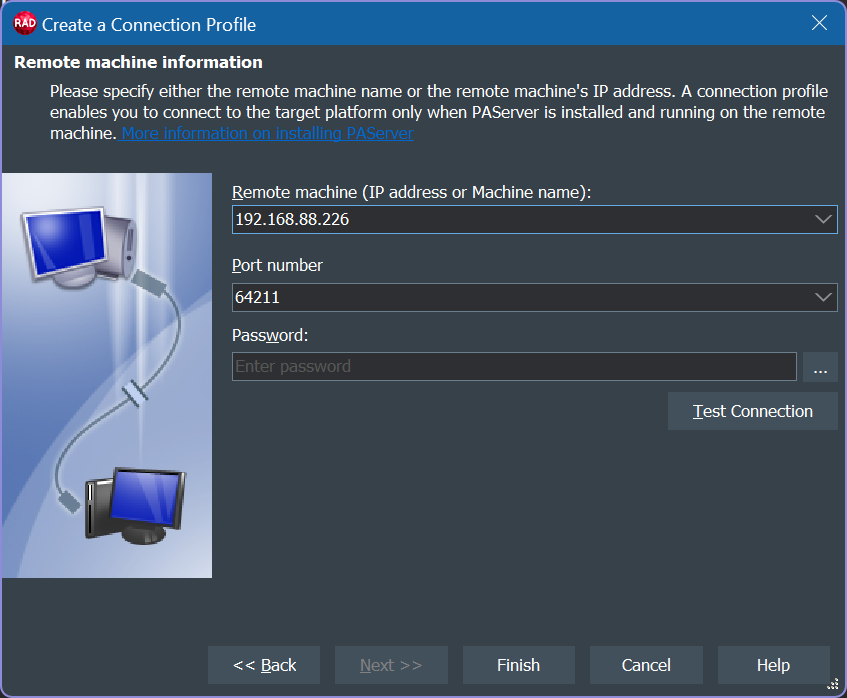
After you have a successful connection you can move on to adding an SDK in the SDK Manager.
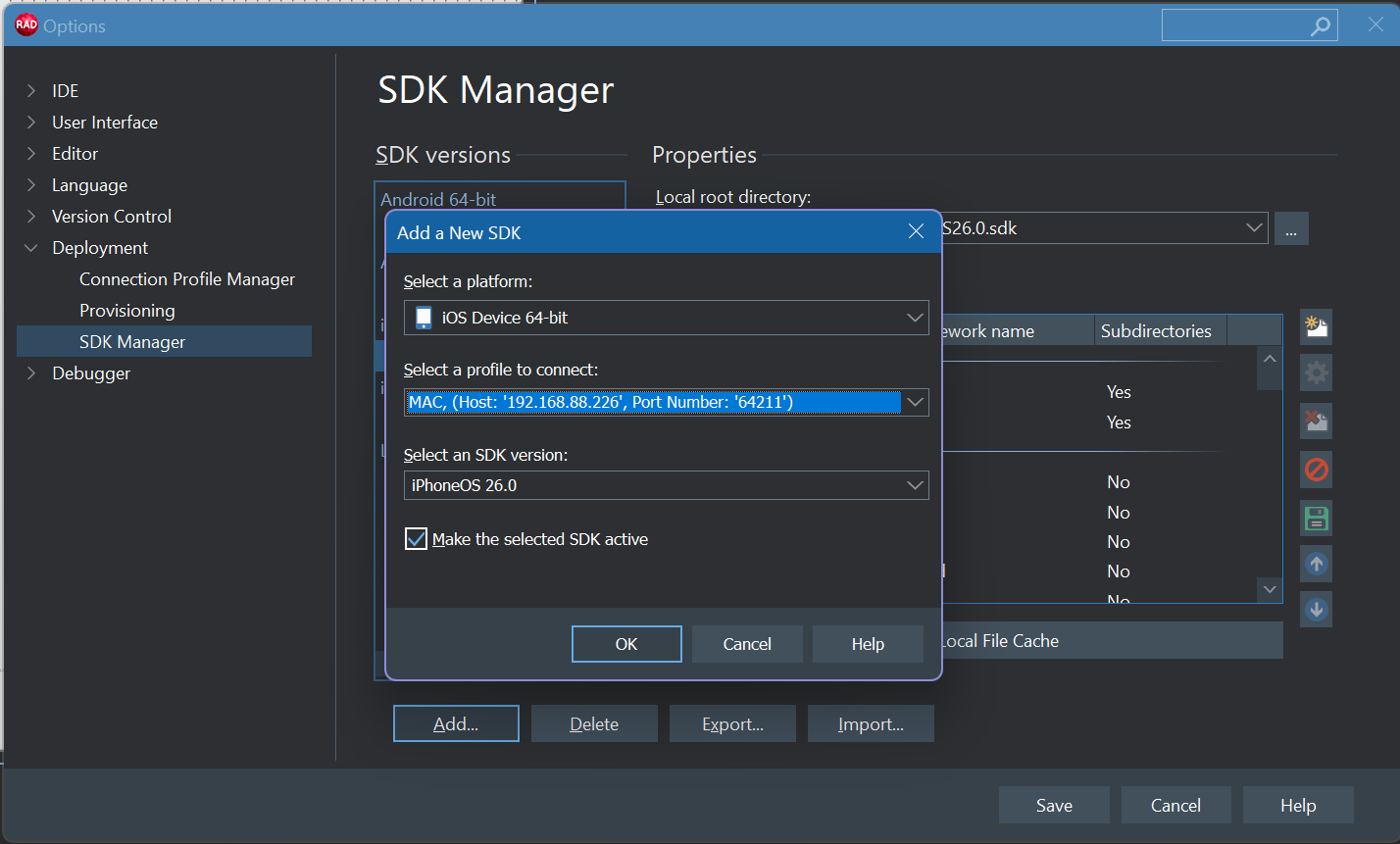
Errors Building
You may encounter linking errors like this:
ld: file not found: /System/Library/Frameworks/AVRouting.framework/AVRouting for architecture arm64
This is easy to solve if you know how:
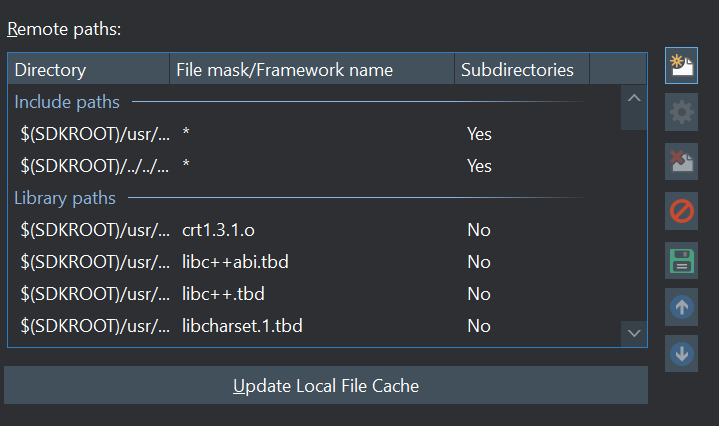
- Right click the IOS connection and Click on Edit SDK.
- Click on the Icon top right of the window
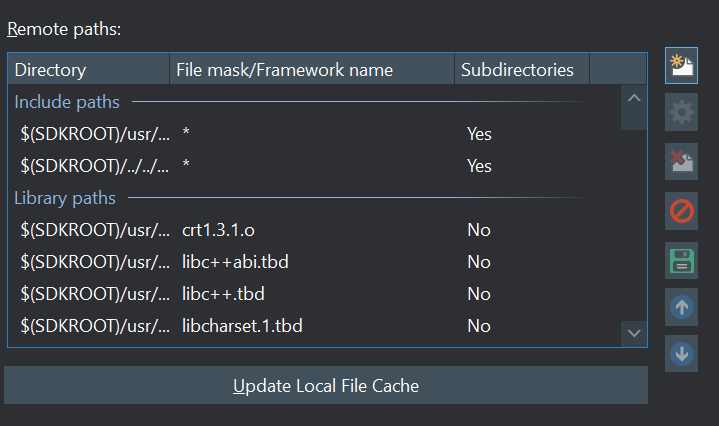
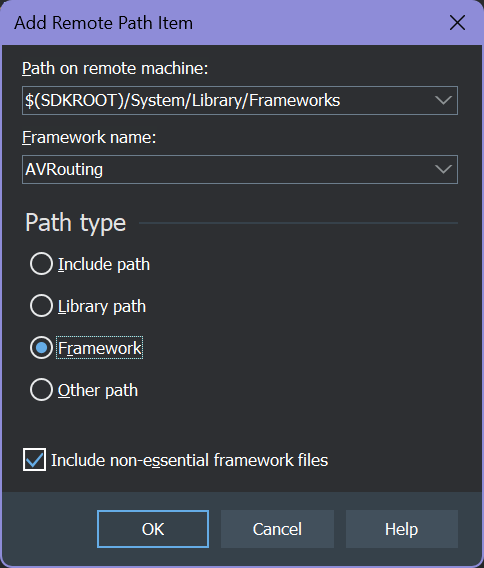
- For Path on Remote Machine Add
$(SDKROOT)/System/Library/Frameworks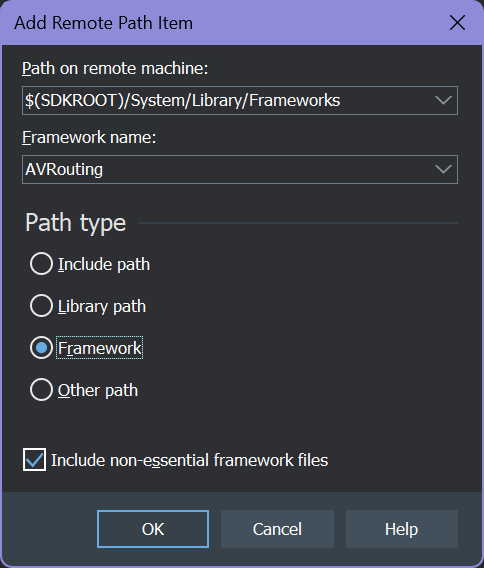
- In this case we add AVRouting as the missing Framework.
- Don't forget to hit the Save button!
- Hit the Update Local File Cache to make sure your local files are in sync with the build system.